
Global App & Page Settings
Settings such as your app name, color properties & page properties.
In this article
Global App Setting
You can reach them two ways:
- via the header of the mobile device preview
- via the ribbon in the editor
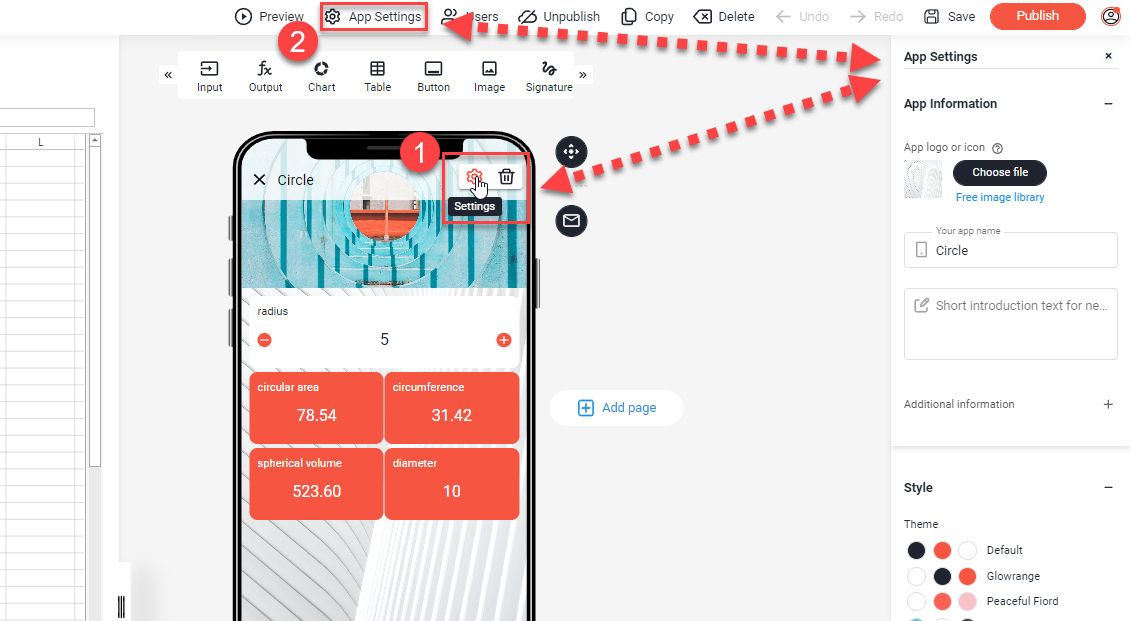
There you will find:
- App Information
- Style
- Advanced
- Webhooks
App Information
Here you can change the App logo, the Name you have chosen during the initial creation and a short introduction for new users of your app. You will also find the ID of your app here.
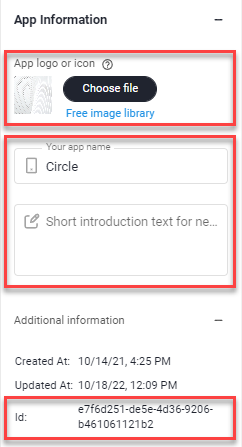
You need the Id (App-ID) if you want to jump from one app to another app.
Style
Here you can change the Theme, Header, Background and general Spacing of elements in your app.
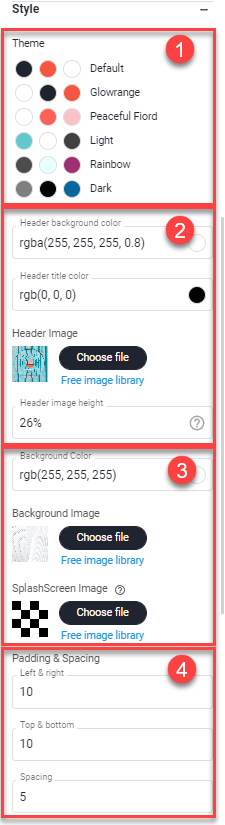
1) Theme
Select our predefined themes including their color values and images.
In the Enterprise package, themes can be created in the respective corporate colors and images. These can then be selected at this position.
2) Header
Set the color values for the header and the image that will be displayed below.
3) Background & SplashScreen
Set the background color or images for the pages in your app here.
The splash screen is shown when the app is launched. The splash screen is also used as a background when the app is opened on desktop.
4) Padding & Spacing
Define default margins between elements and the respective display.
Advanced
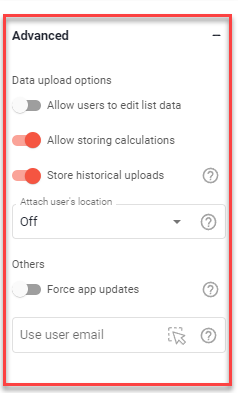
Settings regarding data collection and app behavior can be made here.
Data upload options:
Others:
Use user email
Select a cell to insert the user's email address, so that it can be used in formulas.
The end user whose email address should be used needs an account at Open as App so that the address can be entered.
Webhooks
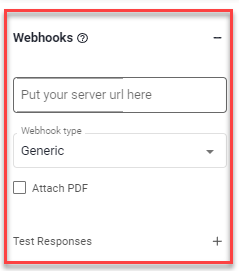
Here you can enter the URL to the web service to which the data will be sent.
You can find more information here:
Page Settings
The page settings can be found via the page selection bar in the mobile preview in the portal.
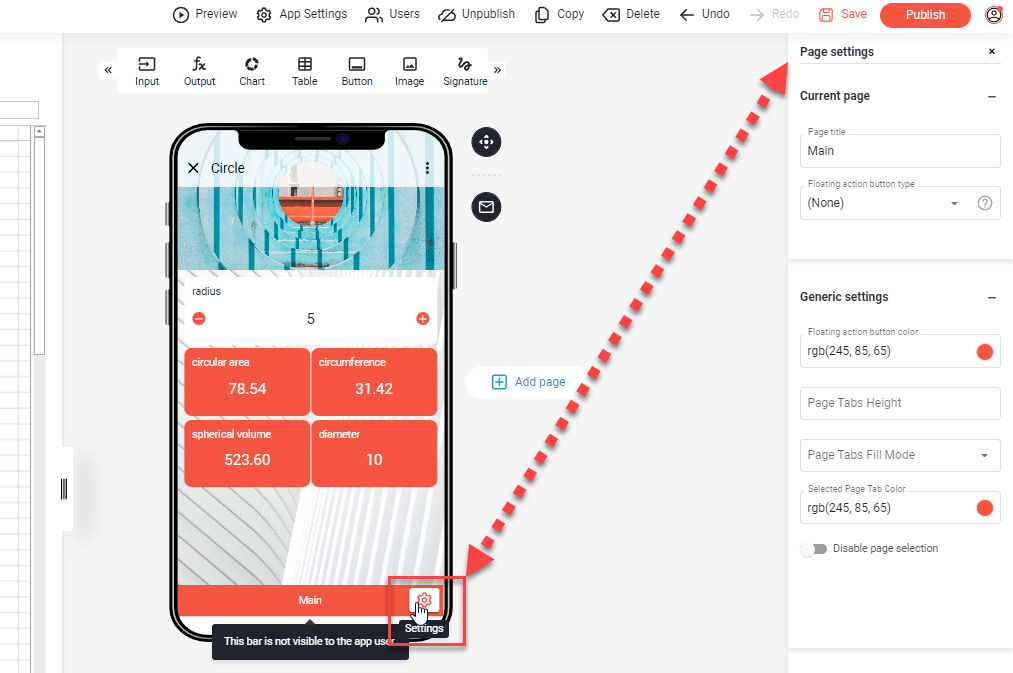
If you have several pages in your app, each page has its own page setting -> Current page and general settings for all pages -> Generic settings.