Add pages & rearrange elements

You can add an extra page to your app and fill it with additional elements. This gives you the ability to spread your content across different pages instead of "squeezing" everything on a single page.
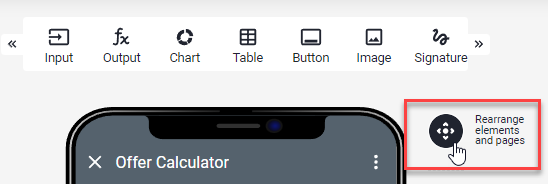
App Designer with the Rearrange elements and pages button next to the app preview highlighted in red


In this article


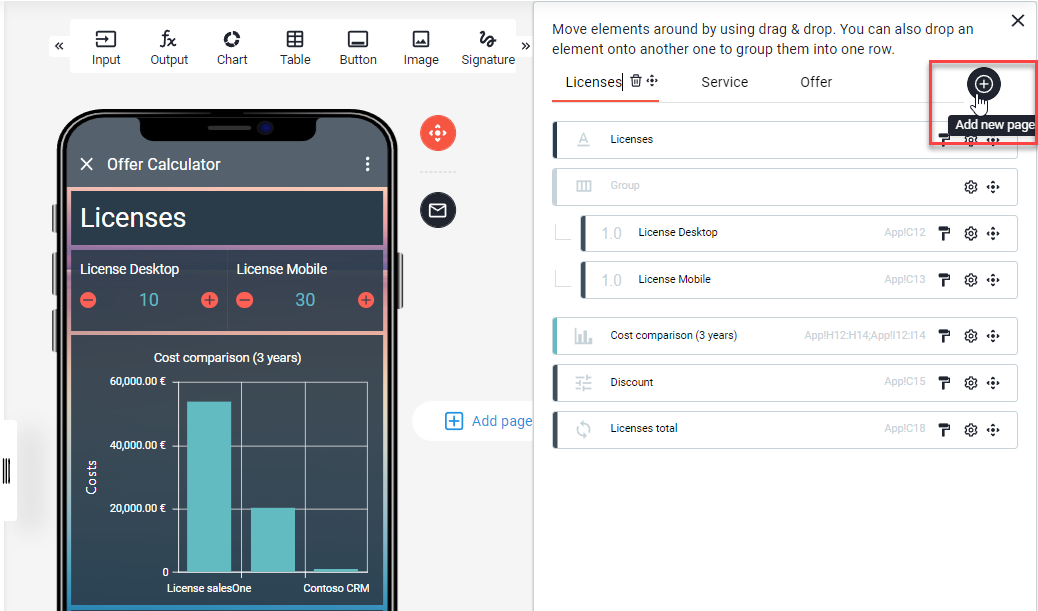
Add new page

Rearrange panel with page tabs Licenses, Service and Offer, the plus icon with the Add new page tooltip is highlighted

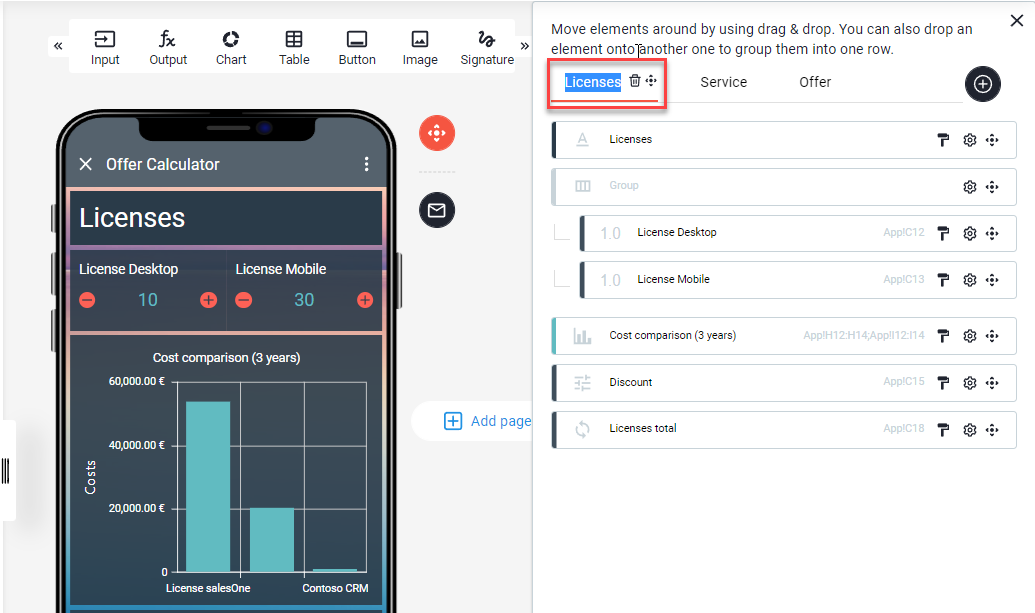
Rename page

Rearrange panel with the page name Licenses selected for editing in the page tab, highlighted in red

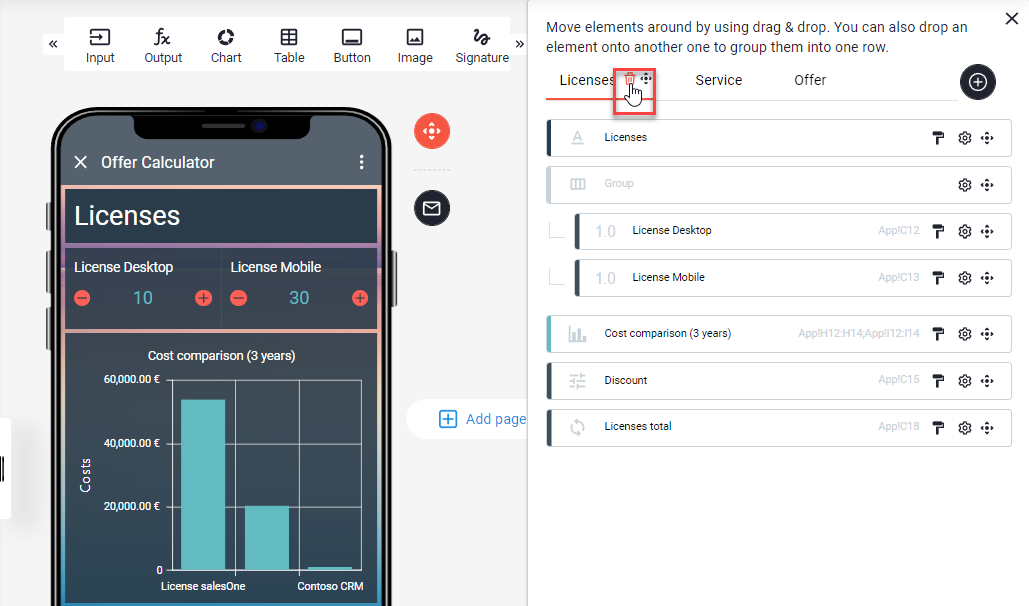
Delete page

Rearrange panel with the trash icon next to the Licenses page tab highlighted for deleting the page

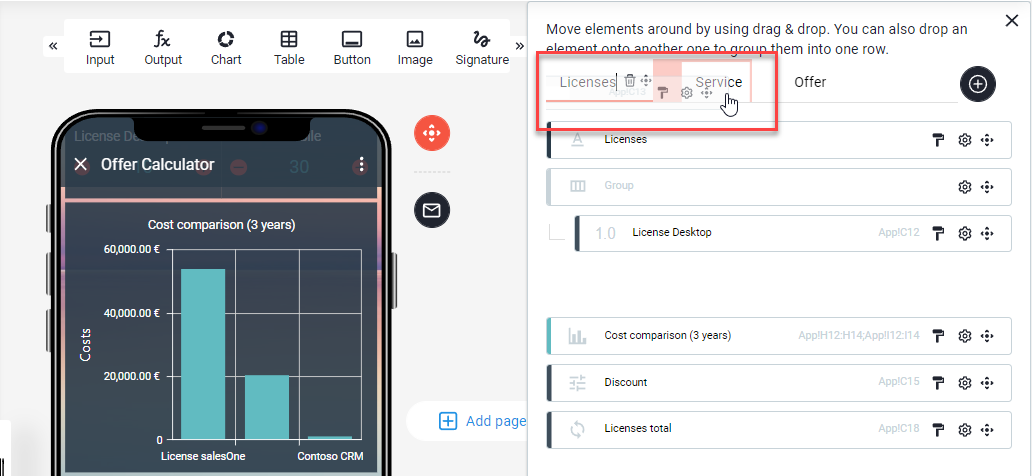
Move elements (to an other page)
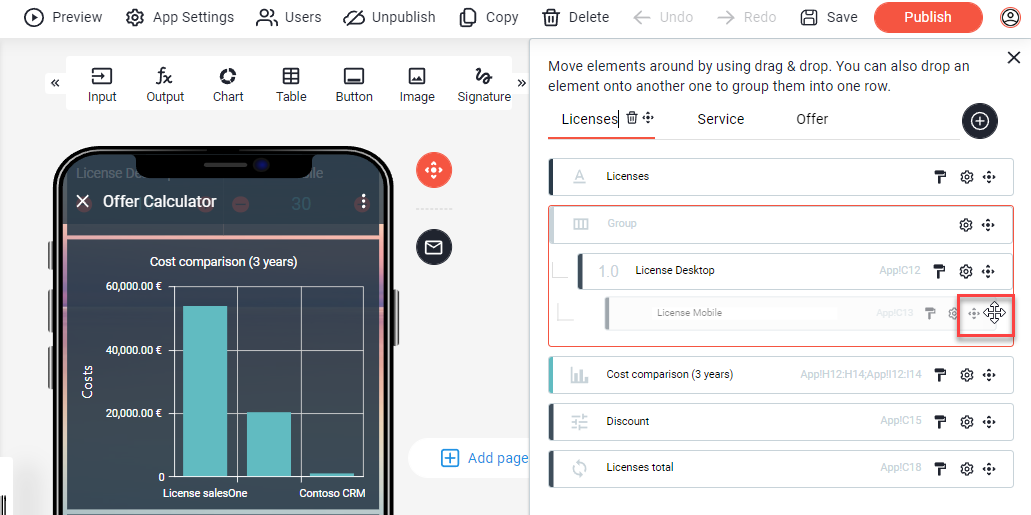
Rearrange panel where the License Mobile element is dragged by its move handle, highlighted in red, in the element list

Rearrange panel where the dragged element is dropped onto the Service page tab, the page tabs are highlighted in red

Still need help?

Can't find what you're looking for? Our support team is happy to help.